
In a world full of fake profiles and AI-generated content, trust matters more than ever on professional networks. LinkedIn’s verification badges help you stand out by confirming key details about who you are, where you work, or where you studied. Verified members often see higher profile views and better engagement.
Key Takeaways:
• 3 easy steps on how to get your LinkedIn Profile Verified in Nigeria
• Common Troubleshooting problems in getting your LinkedIn Profile Verification Badge and how to Bypass them
• Several Reasons you should have your LinkedIn profile Verified
For people in Nigeria, LinkedIn offers several methods depending on your location, employment status, and available documents. Best of all ? Verification of absolutely free! Here’s a clear breakdown of every way to get verified in 2026.
To get your LinkedIn profile verified in Nigeria, you need to complete identity verification using your Nigerian e-passport (the electronic international passport with an NFC chip).
This is the official method available for Nigerians via LinkedIn’s partner Persona. It adds a verified badge next to your name on your profile, confirming your identity matches a valid government-issued ID.
Note: LinkedIn does not currently accept NIN, driver’s license, voter’s card, or other Nigerian IDs for this process in Nigeria. Only the NFC-enabled e-passport works. This is know as ” identity verification” (the main “verified” badge people refer to). There is also a separate form of Verification known as “workplace verification” (via work email). This can appear as verified association with your company and enhance your credibility.
What You Need
- Your valid Nigerian e-passport (must have the NFC/chip symbol on the front or back cover).
- An NFC-enabled smartphone (most Android phones and iPhones 7 and newer support this—check Settings > search “NFC” and enable it).
- The LinkedIn mobile app (iOS or Android. Note: verification does not work fully on desktop/web; it shows a QR code to scan with the app).
- Good lighting and a clean phone camera.
Step-by-Step Guide (Takes 5–10 Minutes)
- Open the LinkedIn app and go to your profile.
- Tap the More button (or three dots/Resources icon, usually near the top right).
- Select About this profile> Verify now (or “Verify with ID” / “Verify identity” / “Add verification badge”).
- Choose Verify with Persona (or government ID option) and accept the terms of use and privacy policy.
- Select Nigeria as your country.
- Take a clear photo of your passport’s data page (the first page with your photo and details). You can upload a photo if needed—make sure it’s sharp, well-lit, no glare, and fully readable.
- Review the pre-filled details (name, etc.) and tap Continue.
- Scan the NFC chip: Place your passport on a flat surface (photo page up or try the back cover).
- Remove any phone case or passport cover.
- Place the back of your phone flat against the passport (try the top half, center, or move slowly around the cover/front/back until it detects the chip).
- Hold still until the scan completes (you may feel a vibration). NFC must be turned on.
- Take a selfie (live photo or face scan) as prompted.
- Tap Yes, Share to send the verification to LinkedIn.
Once approved (usually instant or within minutes), the verified badge appears on your profile. You can remove it anytime in Settings if you want.
Common Troubleshooting Tips (Especially for NFC Scan Issues)
- NFC not scanning? Try the front cover, back cover, or inside pages. Move the phone slowly without pressing hard. Some users succeed on the Coat of Arms area on the back. Test your phone’s NFC first (e.g., tap on a payment terminal).
- No “Verify now” button? Update the LinkedIn app or wait a bit—the rollout is gradual.
- Camera/selfie issues? Clean your lens, use bright even lighting, and grant camera permissions in phone settings.
- Name mismatch? As long as the name on your passport closely matches your LinkedIn profile, it usually works.
- Phone doesn’t have NFC? Borrow a friend’s NFC-enabled phone, log into your LinkedIn account on it, and complete the steps.
- Still stuck? Check LinkedIn Help or contact support via the app.
Faster Alternative: Workplace Verification (No Passport Needed)
If you don’t have an e-passport or NFC phone:
- On your profile, go to Verify workplace (or similar option under More/About this profile).
- Choose Verify with work email.
- Enter your official company/school email (not Gmail/Yahoo).
- Verify the code sent to your email.
This confirms your professional affiliation and can display a verified indicator (it often pairs well with identity verification).
Ways to Verify your LinkedIn Profile and get a Verification Badge International
(For All Countries)
- Identity Verification (The Blue Checkmark for “You Are Real”)
This confirms that you are a real person using a government-issued ID. A verification badge appears next to your name, signaling authenticity to recruiters, clients, and connections.
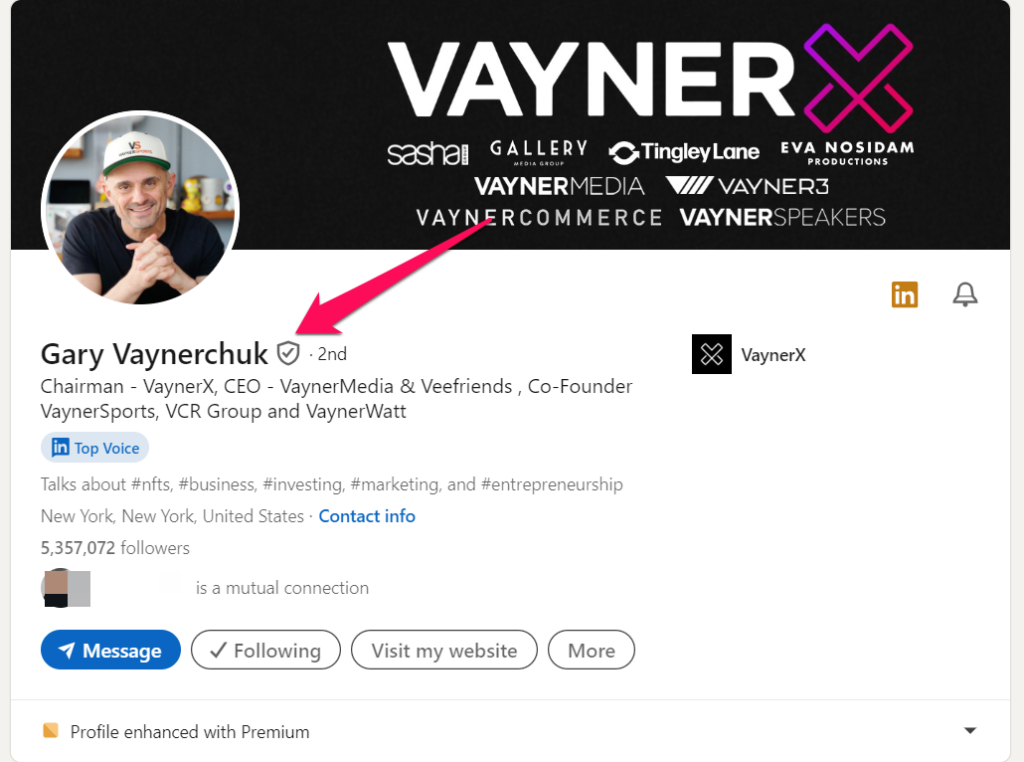
Gary Vaynerchuk Verified LinkedIn Profile
The main LinkedIn Partner handling this:
- CLEAR (Best for users in the US, Canada, and Mexico)
Available if you have a valid government-issued ID (driver’s license, state ID, or passport) and a personal phone number (business numbers usually don’t work).
Steps:
- Open the LinkedIn mobile app (desktop often uses a QR code to continue on mobile).
- Go to your profile → Tap Resources (or the Resources icon) → About this profile → Verify now.
- Select identity verification and follow CLEAR’s prompts: enter phone/email, take a selfie, and scan your ID.
- Consent to share the verification with LinkedIn.
Once approved, the badge appears if your name matches your LinkedIn profile.
- Persona (Available for many international users)
Often requires an NFC-enabled passport (e-passport with the chip). You’ll scan the NFC chip with your phone, take a photo of the passport, and complete a selfie.
How to start: Same path as above — Resources → Verify now.
LinkedIn is expanding supported countries and ID types, so check availability in your region.
Tip: Make sure the name on your LinkedIn profile exactly (or very closely) matches the name on your ID. Mismatches are the most common reason verifications fail.
- Workplace Verification (Confirm Where You Work)
This badge appears next to your current job title or experience section and shows you’re genuinely associated with that company.
Multiple ways to verify your workplace:
- Work Email Verification (Most common and easiest)
Use your official company email address. LinkedIn sends a verification code to that email — simply enter it to confirm.
This works for thousands of companies and is straightforward for employees.
- Microsoft Entra Verified ID
Available at companies integrated with Microsoft’s identity platform. You confirm employment through Entra. - Company-Provided Licenses
If your employer provides you with a LinkedIn Learning license or an active LinkedIn Recruiter seat, you may be able to verify your workplace through those.
How to start: Go to Resources → Verify now → Choose “Verify your workplace.”
Note: Once your company’s LinkedIn Page is verified (for organizations), it can make workplace verification easier for all employees.
- Educational Institution Verification
This confirms your association with a school or university.
It’s typically available if your institution provides a LinkedIn Learning license to students or alumni. The badge appears near your education section.
Availability is more limited than identity or workplace verification, but it’s a nice touch for recent graduates or academics.
Step-by-Step: How to Access Verification on LinkedIn
- Log into the LinkedIn mobile app (recommended for smoothest experience; desktop may redirect via QR code).
- Go to your profile.
- Tap the Resources icon (or “Resources” button).
- Select About this profile → Verify now.
- Choose the type of verification you want (identity, workplace, or education) and follow the on-screen instructions.
The process usually takes just a few minutes. Once successful, badges appear on your profile, in search results, and when people view your information.
Please Note: Verification is completely free, optional, and helps with more profile views and engagement. It’s now widely available in Nigeria and many other African countries for e-passports.
Benefits of Getting Verified
– Builds instant trust with recruiters, clients, and partners.
– Verified members reportedly see up to 60% more profile views.
– Helps your profile stand out in a crowded professional space.
– Signals transparency in an era of deepfakes and impersonation.
Common Tips & Troubleshooting
– Prepare in advance: Update your profile name to match your ID exactly. Complete your profile to All-Star level for better results.
– Mobile-first: Most verifications work best in the app.
– Name mismatch? You may still qualify in some cases — LinkedIn has guidance for minor differences.
– Not available in your country? LinkedIn continues to expand partners and regions. Check back periodically.
– Privacy: Your actual ID details stay with the verification partner; LinkedIn only shows the badge and sometimes the issuing country.
Should You Get Verified?
Verification isn’t mandatory, but it’s a quick, free way to add credibility — especially if you’re job hunting, freelancing, or building a personal brand. Start with the easiest option (work email if you have one), then move to identity verification for maximum impact.
If the option doesn’t appear or you run into a specific error, update your app and try again. LinkedIn is expanding this feature. Good luck! Your verified profile will stand out to recruiters and clients.





Leave a Reply